

Camera Movements
Use smooth, natural camera movement to present the space clearly and accurately.
A new perspective on every space.
Create AI real estate video from listing photos. Give buyers a reason to stop scrolling and start imagining.
BUILT AROUND YOUR PROPERTY
From the first photo to the final presentation. Explore our tools and the next additions to your property workflow.
Use smooth, natural camera movement to present the space clearly and accurately.


Import a full listing from a property link or upload photos in bulk, then start a video in seconds.
Turn an empty room into a furnished, buyer-ready space while preserving its layout.

Refine the mood, lighting, and presentation of your property photography.


Transform familiar property footage with cinematic transitions, environmental motion, and scroll-stopping listing moments.

Put property photos in the order you want, then choose the pacing, transitions, and music before export.
Upload your property, choose the tools, and export the video.
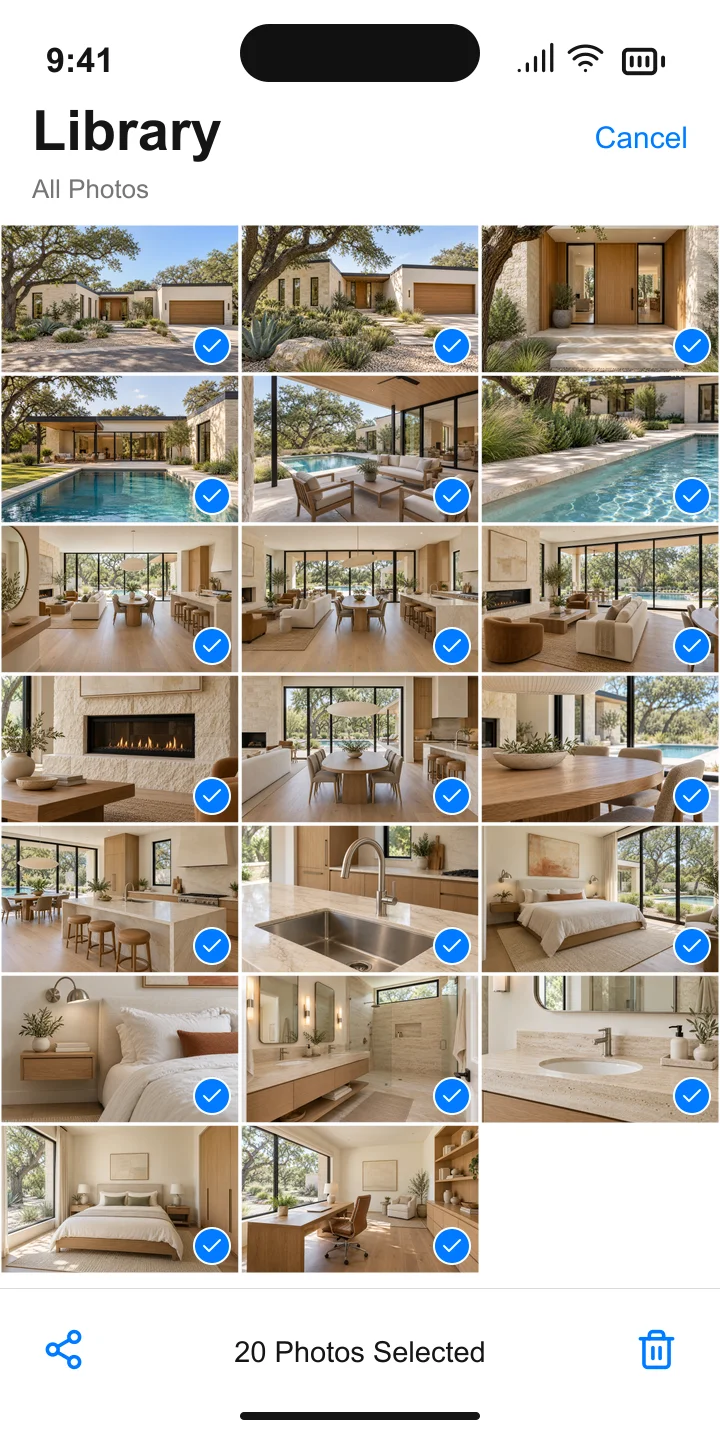
Start with one property photo or upload a complete listing in a batch.
Add camera movement, virtual staging, photo enhancement, or visual effects to each space.
Review the finished real estate video, then export and download the MP4.
A listing video for your next launch. A video add-on for your next photo delivery.
Compare six camera movements generated from the same property photo.

For real estate agents
Turn listing photos into a video for Reels, TikTok or Facebook. Show sellers how you’ll present their property, without scheduling a separate video shoot.
For property photographers
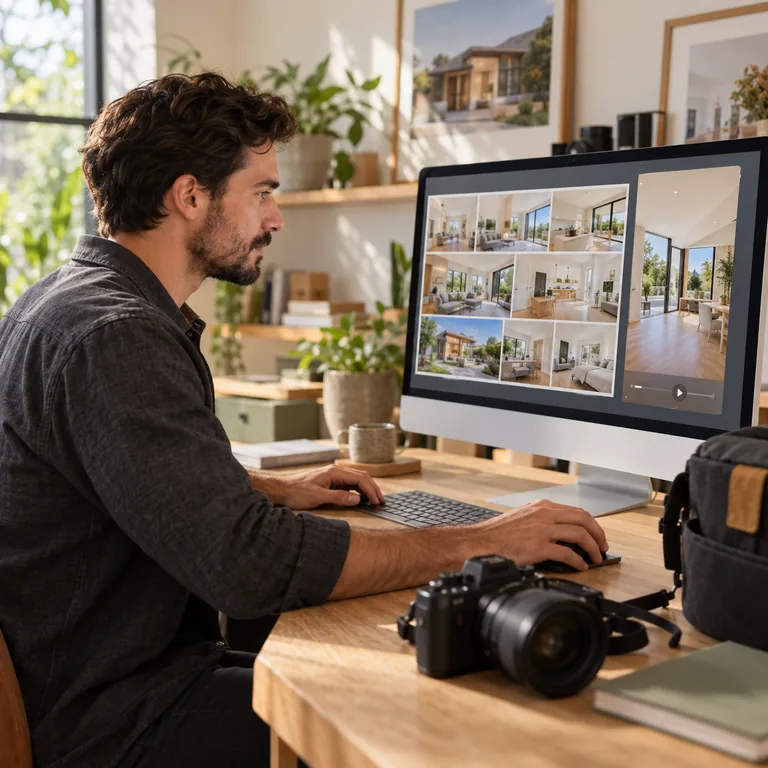
Offer an AI video as an add-on to your photo package, using the images you already captured. Review the result and deliver it alongside the photos.
BEYOND THE LISTING

AI-generated property scene, not an actual listing or generated video output.
BEFORE YOU GENERATE
A useful listing video starts with clear source material and a plan for where the finished clip will appear. These practical checks help you choose inputs, motion, and export settings without overstating what AI can do.
Use sharp, well-exposed listing photos that show complete rooms, exterior elevations, and the visual connections between spaces. Original-resolution files give the generator more architectural detail to work with than screenshots or heavily compressed images. Remove duplicate angles before uploading, keep a consistent orientation where possible, and place the strongest exterior or signature room first. You must own the photos or have permission to use and transform them. Avoid images with large watermarks, extreme lens distortion, or people whose appearance should not be altered.
Choose motion according to the composition rather than applying one effect to every photo. A slow push-in can direct attention toward a view or feature wall, while a lateral move can help explain width and room layout. Vertical or drone-style movement works best when the image contains enough floor, ceiling, or exterior context. Keep motion restrained when straight architectural lines are important. Preview adjacent clips together, then adjust their order and duration so the finished video feels like one property tour instead of a collection of unrelated animations.
AI video can change windows, doors, built-in furniture, landscaping, room dimensions, reflections, and small objects between frames. Virtual staging can also introduce furnishings that do not exist at the property. Compare every generated clip with the original photo before publishing it, especially around structural edges and permanent fixtures. Reject results that create a misleading impression, and follow the disclosure rules that apply to your market, brokerage, listing portal, and advertising channel. The final accuracy decision remains with the person publishing the listing.
Decide where the video will be used before arranging scenes. A listing page may benefit from a clear room-by-room sequence, while a social post usually needs a stronger opening image and a shorter pace. Check captions for names, prices, addresses, and dates; choose music you are permitted to publish; and keep important text away from interface overlays used by social platforms. Review the complete MP4 with sound before downloading, then confirm that its aspect ratio, duration, file size, and visual disclosures meet the destination platform requirements.
Camera movement animates the viewpoint around an existing photograph, while photo enhancement changes visual qualities such as lighting and atmosphere. Virtual staging adds furnishings to an empty space, and visual effects can introduce environmental motion or marketing elements that were not present in the original scene. The reel builder then combines selected clips, captions, pacing, transitions, and music into one export. Treat these as separate editing decisions: test the smallest change that serves the room, keep an untouched source file, and compare the result with the original before moving to the next stage.
Group photos, generated clips, approved captions, music choices, and export versions under the correct property so details do not move between listings. Use a consistent scene order and confirm the address text before generation. If several people review the work, agree on which version is approved and preserve the original files for comparison. Recheck the final sequence after replacing or regenerating any clip, because a new duration can change pacing elsewhere in the edit. A simple project structure makes it easier to revise social cuts without losing the reviewed listing version.
The AI real estate video generator is available through the Listing Workspace. Create a listing, upload property photos, choose tools and settings for each scene, then generate, review, arrange, and export the finished video.
You can start with a still photo using image-to-video. Use clear images that you own or have permission to use. This does not replace checking the accuracy of the final result.
The opening example is an actual one-minute video generated from the 20 selected photos of an AI-created demo home. Camera Movements and AI Virtual Staging also play sample videos. Other illustrations use AI-generated property scenes.
Not always. Generative models may change details. Review every result and do not publish content that misrepresents a property.
Open Pricing in the navigation to review the current plans. Generation costs depend on the selected model and settings.
Start with a photo. See where it takes you.


